
| 일 | 월 | 화 | 수 | 목 | 금 | 토 |
|---|---|---|---|---|---|---|
| 1 | 2 | 3 | 4 | 5 | 6 | |
| 7 | 8 | 9 | 10 | 11 | 12 | 13 |
| 14 | 15 | 16 | 17 | 18 | 19 | 20 |
| 21 | 22 | 23 | 24 | 25 | 26 | 27 |
| 28 | 29 | 30 |
- spring spring boot 차이점 공통점
- Blazor Web App
- 스프링부트의 장단점
- Service Worker
- 프론트엔드
- Blazor WebAssembly
- UaExpert다운로드
- C# CS
- Prosys Opc-ua 다운로드
- OPC-UA
- 서버저장방식
- C#이론
- CS
- 스프링 스프링부트 차이점 공통점
- Redundant Array of Independent
- C# Blazor
- OPC-UA Download
- opc-ua 다운로드
- 컴퓨터과학
- java란?
- REST API
- 기술면접
- 스프링부트 장점
- java란 무엇인가
- 스프링부트 단점
- jvm구성요소
- cs기술면접
- nosql
- UaExpert download
- prosys opc-ua
- Today
- Total
담비의 개발블로그
[C#]OPC-UA 장비 없이 집에서 해보기 03 본문
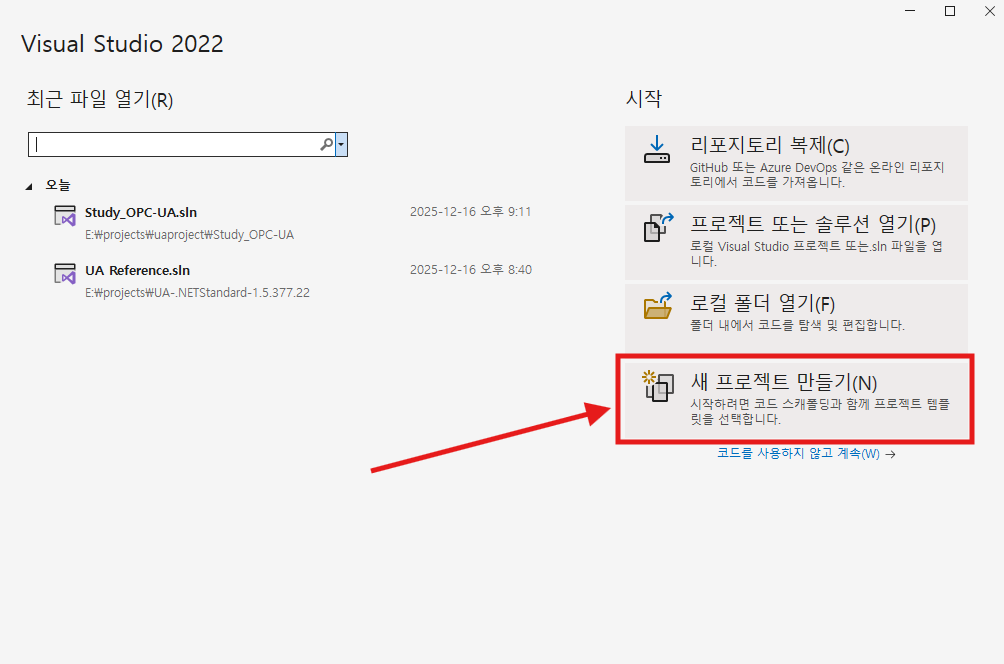
이제 Visual Studio 2022를 키고 새프로젝트 만들기 클릭하기
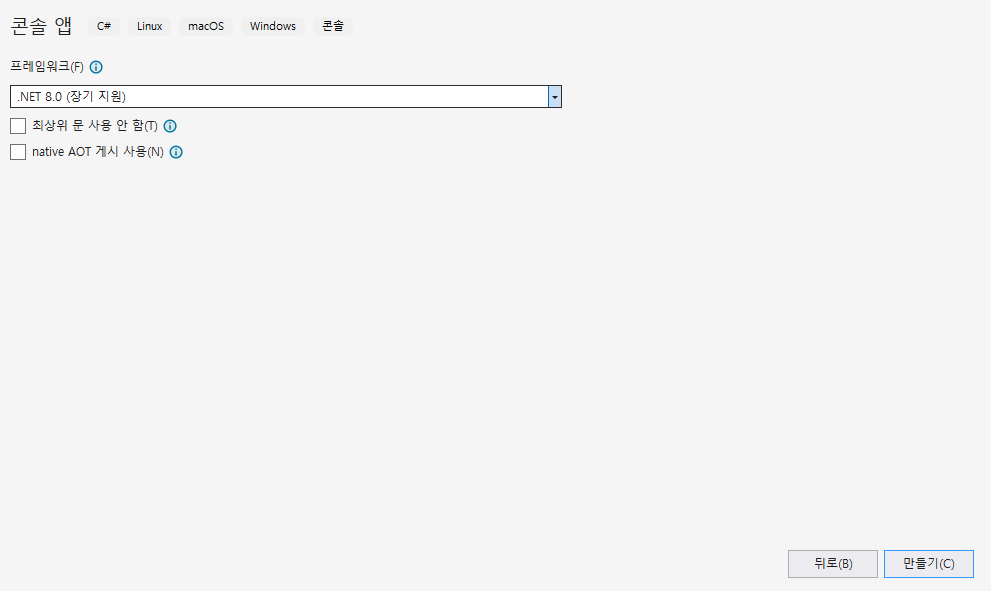
그리고 콘솔앱 검색해서 아래의 이미지의 콘솔앱 누르고 다음!버튼 누르기

프로젝트 이름이랑 솔루션이름 정해주면 됨
둘다 똑같이 해도되는데
솔루션이름은 이 프로그램을 만드는 총괄 이름으로 생각해주면 될것같고 그 안에 어떤화면이나 어떤기능들을 구성할지에 따른것들을 프로젝트 이름으로 보면 된다.

그렇게 해서 만들기 하면 됨!
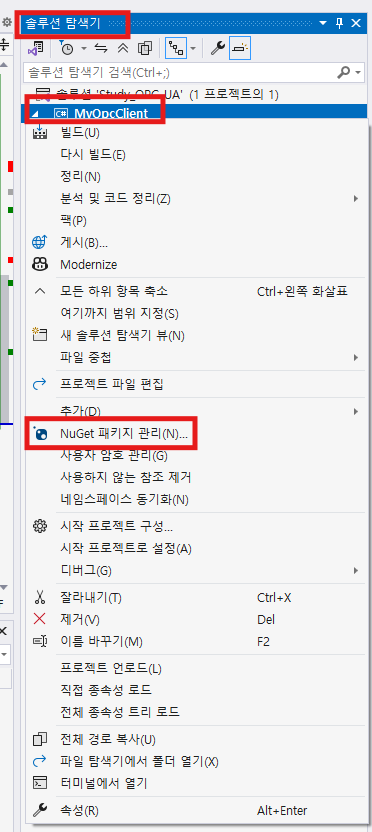
그리고 그냥 코드를 작성하면 호환이 안되는 문제 때문에 설치해줘야할게 있는데
솔루션 탐색기 안의 내가 만든 프로젝트 이름을 보고 오른쪽마우스 버튼으로 클릭하여
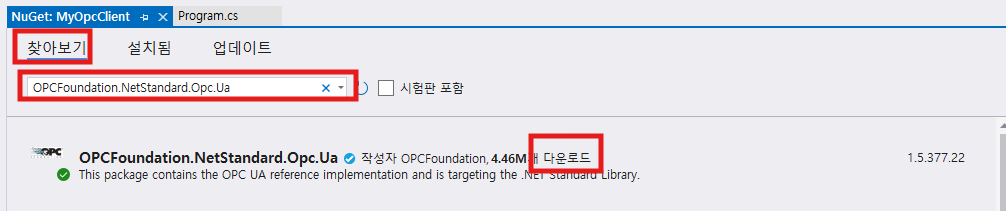
NuGet 패키지 관리에 들어간다
그리고 찾아보기 탭에서 [OPCFoundation.NetStandard.Opc.Ua] 검색해서 다운로드 받기
UaExpert 에서 Address Space 탭에서 DATA > Dynamic >DoubleValue 클릭을 하면
Attributes 탭에서 NodeId의 Value에서 본인의 저 값을 기억해둬야한다.
본인은 ns=3;i=2813이다.

그리고 내가 만든 프로젝트에다가 program.cs에 있던 코드 다 지우고 코드를 작성한다!
아래 코드에 보면 주석에 별표가있는데 NodeId 꼭 본인것으로 바꿔서 작성한다!

using Opc.Ua;
using Opc.Ua.Client;
using System;
using System.Linq;
using System.Threading.Tasks;

class Program
{
    static async Task Main(string[] args)
    {
        Console.WriteLine("1. OPC UA 클라이언트 시작...");

        // 1. 설정 만들기
        var config = new ApplicationConfiguration()
        {
            ApplicationName = "MyClient",
            ApplicationUri = Utils.Format(@"urn:{0}:MyClient", System.Net.Dns.GetHostName()),
            ApplicationType = ApplicationType.Client,
            SecurityConfiguration = new SecurityConfiguration
            {
                ApplicationCertificate = new CertificateIdentifier { StoreType = @"Directory", StorePath = @"%CommonApplicationData%\OPC Foundation\CertificateStores\MachineDefault", SubjectName = "MyClient" },
                TrustedIssuerCertificates = new CertificateTrustList { StoreType = @"Directory", StorePath = @"%CommonApplicationData%\OPC Foundation\CertificateStores\UA Certificate Authorities" },
                TrustedPeerCertificates = new CertificateTrustList { StoreType = @"Directory", StorePath = @"%CommonApplicationData%\OPC Foundation\CertificateStores\UA Applications" },
                RejectedCertificateStore = new CertificateTrustList { StoreType = @"Directory", StorePath = @"%CommonApplicationData%\OPC Foundation\CertificateStores\RejectedCertificates" },
                AutoAcceptUntrustedCertificates = true,
                AddAppCertToTrustedStore = true
            },
            TransportConfigurations = new TransportConfigurationCollection(),
            TransportQuotas = new TransportQuotas { OperationTimeout = 15000 },
            ClientConfiguration = new ClientConfiguration { DefaultSessionTimeout = 60000 }
        };

        await config.ValidateAsync(ApplicationType.Client);

        if (config.SecurityConfiguration.AutoAcceptUntrustedCertificates)
        {
            config.CertificateValidator.CertificateValidation += (s, e) => { e.Accept = (e.Error.StatusCode == StatusCodes.BadCertificateUntrusted); };
        }

        // 2. 서버 주소
        string serverUrl = "opc.tcp://localhost:62541/Quickstarts/ReferenceServer";
        Console.WriteLine($"2. 서버({serverUrl}) 찾는 중...");

        try
        {
            EndpointDescription endpointDescription = null;
            var uri = new Uri(serverUrl);

            using (var discoveryClient = DiscoveryClient.Create(uri))
            {
                var endpoints = await discoveryClient.GetEndpointsAsync(null);
                endpointDescription = endpoints.FirstOrDefault(e => e.SecurityMode == MessageSecurityMode.None && e.TransportProfileUri == Profiles.UaTcpTransport);
            }

            if (endpointDescription == null)
            {
                Console.WriteLine("오류: '보안 없음(None)' 접속 모드를 찾을 수 없습니다.");
                return;
            }

            var endpointConfiguration = EndpointConfiguration.Create(config);
            var endpoint = new ConfiguredEndpoint(null, endpointDescription, endpointConfiguration);

            Console.WriteLine("3. 세션 생성 중...");

            var sessionTask = Session.Create(config, endpoint, false, "MySession", 60000, new UserIdentity(new AnonymousIdentityToken()), null);
            using (var session = await sessionTask)
            {
                Console.WriteLine("4. 연결 성공! 데이터 읽는 중...");

                Console.WriteLine("------------------------------------------------");
                Console.WriteLine("ESC 키를 누르면 종료합니다.");
                Console.WriteLine("------------------------------------------------");

                // ★★★★★★★★★★★★★★★★★★★★★★★★★★★★★★
                // 값을 읽어올 주소 (NodeId)
                // 본인의 Value값으로 꼭 넣기!!!!!!!!
                // ★★★★★★★★★★★★★★★★★★★★★★★★★★★★★★
                NodeId nodeId = new NodeId("ns=3;i=2813");

                // 무한 루프
                while (true)
                {
                    // 키보드 입력 확인 (ESC 누르면 탈출)
                    if (Console.KeyAvailable && Console.ReadKey(true).Key == ConsoleKey.Escape) break;

                    // 데이터 읽기
                    DataValue value = await session.ReadValueAsync(nodeId);

                    // 화면 출력
                    Console.WriteLine($"[{DateTime.Now.ToLongTimeString()}] 현재 값: {value.Value}");

                    // 1초 대기
                    await Task.Delay(1000);
                }
            }
        }
        catch (Exception ex)
        {
            Console.WriteLine("오류 발생 ㅠㅠ : " + ex.Message);
            Console.WriteLine(ex.StackTrace);
        }

        Console.WriteLine("종료되었습니다. 엔터를 누르세요.");
        Console.ReadLine();
    }
}
그리고 F5누르면 실행되서 엄청 멋진 성과를 볼 수 있음
매우 뿌듯!

이제 이 코드 하나하나를 해석해보자!
왜냐하면 난 C#을 하나도 모르니까!
일단 내일 출근해야하니까 오늘도 여기까지!!
■ 앞으로 해야할 것
1. WPF로 바로 가기
- 검정색 콘솔창을 보지않고 윈도우 프로그램을 만들어서 예쁘게 볼 수 있음(프론트 화면구성)
2. '쓰기(Write)' 기능 배우기
- 현재는 서버의 값을 읽어오는 것인데 C#에서 숫자를 쏴서 서버의 값을 바꿔보기
3. '구독(Subscription)' 방식 배우기
- while(true) 무한반복은 공부할때 쓰는 용도. 실무에선 "값이 변할 때만 알려줘!" 하는 방식을 사용. "저 폴링(Polling) 말고 섭스크립션(Subscription) 쓸 줄 압니다" 라는 말을 하면 좋음!!
'언어&프레임워크 > C#' 카테고리의 다른 글
| [C#]C#기초이론 (0) | 2026.04.08 |
|---|---|
| [C#]OPC-UA 장비 없이 집에서 해보기 02 (0) | 2025.12.10 |
| [C#]OPC-UA 장비 없이 집에서 해보기 01 (1) | 2025.12.09 |